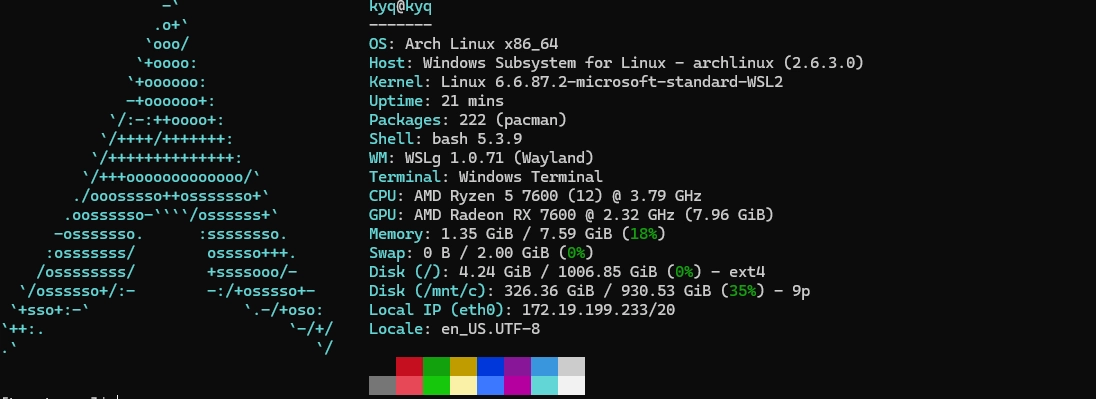
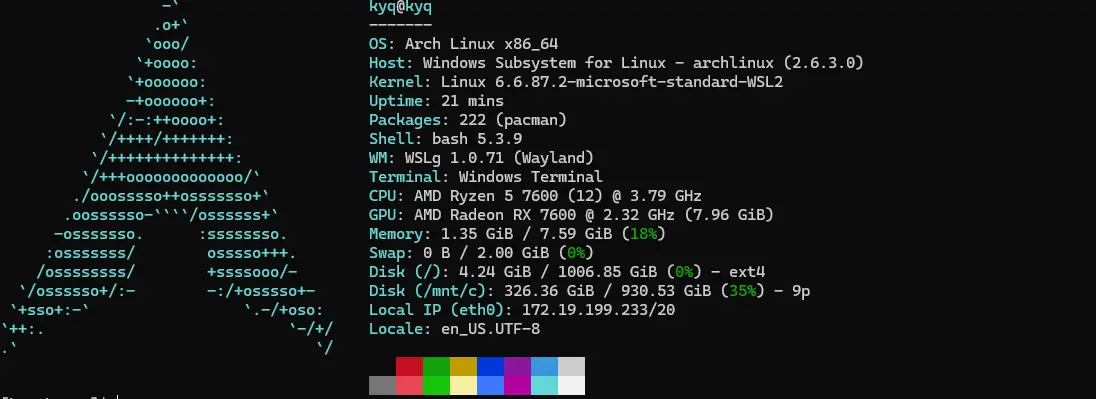
Getting started with WSL Arch Linux
4/10/2025 / 2 minutes to read / Tags: guide, arch, linux
The development environment today in Windows is made with WSL to help with velocity, compatibility, and daily use of a Unix-based system.
Important points:
- Having WSL2 installed.
- Run
wsl --set-default-version 2in the Windows Terminal so all WSL installations use WSL2 by default.
Installing Arch Linux
- Run
wsl --install archlinux --name [example]. - After downloading, you will be in the Arch Linux command line. It is necessary to configure users and sudo, which are not set up by default.
Initialize the package manager.
Refresh Pacman GPG Keys
pacman-key --initpacman-key --populatepacman-key --refresh-keyspacman -Sy archlinux-keyringRun pacman -Syu to update all packages to the latest version.
Install a command-line text editor.
pacman -Syu vimorpacman -Syu nano
Creating a user.
- Create a
sudogroup withgroupadd sudo. - Activate the sudoers file:
vim /etc/sudoerse descomente as linhas%wheel ALL=(ALL) NOPASSWD: ALLe%sudo ALL=(ALL) ALL - Add a new admin user::
useradd -m -G wheel,sudo -s /bin/bash [username] - Add a password to a new user with `passwd [username]
- Close WSL Arch Linux and relaunch normally.
Recommendations
- Install Yay AUR Helper
- Install Docker
- Install default utility tools such as wget, htop, and whatever is necessary.
- Config your ssh keys in ~/.ssh.
Configure VSCode
- Here it is simple, just go to the extensions and install WSL Microsoft.
- After installation, just connect VSCode to WSL and proceed with your configurations.
← Back to blog